MC1387528 Microsoft Teams VDI: Outgoing screensharing changes for SlimCore-based optimization
Primary service: Teams
ChangePilot summary
- Outgoing screensharing in Microsoft Teams VDI with the new SlimCore optimization will capture and process shared content on the virtual machine (VM) instead of the endpoint device; enabled by default in supported client versions.
- Affected: organizations using Teams in VDI environments (Azure Virtual Desktop, Windows 365, Citrix, Amazon WorkSpaces, Omnissa) and users who share content from a VDI session.
- Admins must validate VM CPU/memory/network capacity, allow Microsoft 365 network endpoint categories 11 and 12 for VMs, run the Teams Network Assessment Tool from the VM, and ensure Teams clients meet minimum required versions.
- Expect increased VM CPU, memory and bandwidth utilization for screensharing; audio/video processing and incoming screenshare rendering are unchanged; users will see no UI changes but may see an initial cursor delay (fixed in Teams v26149+).
Latest update: Image URL Change
What it means for you
What admins need to do
Validate and right-size virtual machine resources for screensharing (CPU, memory, and network). Update network/firewall rules to allow Microsoft 365 network endpoint categories 11 and 12 for VMs and run the Microsoft Teams Network Assessment Tool from within representative VDI VMs (NetworkAssessmentTool.exe /infraconnectivitytest). Ensure Teams clients in VDI meet the minimum required versions (Windows v26149.x.x.x+, Mac v26072.521.4595.7966+ as applicable). Consider using the supported registry key options to limit resolution or frame rate to reduce VM resource consumption. Inform helpdesk/support teams and update internal documentation about the new behavior and potential performance impacts.
Impact on users
From a user perspective sharing from within a VDI session will continue to work the same way in the UI, but the shared content will be captured and processed in the virtual machine rather than your local device. Expect improved reliability and media quality in many cases; however, some users may notice an initial cursor delay when starting app sharing (restart the share to resolve; fixed in Teams v26149+). Anonymous users who join meetings that enforce CAPTCHA will not be able to share screens.
If you miss it
If IT does not prepare VDI VMs and network configurations, organizations may see degraded screensharing performance, higher VM CPU/memory and bandwidth contention, increased helpdesk incidents, or failed sharing if network endpoints are blocked. Failure to validate client versions could expose users to known issues (e.g., cursor delay) that are resolved in newer Teams releases. The change is enabled by default, so lack of planning can lead to unexpected performance impacts for VDI users.
- Admin controls available
- Yes
History
Recorded changes
No changes recorded since ChangePilot first saw this post.
Microsoft message
[What and Why]
Microsoft is updating how outgoing screensharing works in Microsoft Teams for Virtual Desktop Infrastructure (VDI) environments using the new optimization (SlimCore-based media engine). This change improves reliability, security, and media quality by shifting screensharing capture and processing to the virtual machine instead of the endpoint device.
This update is part of the broader transition to the new optimization, which replaces legacy WebRTC optimization in VDI scenarios. For more information, review related post MC1239928. This architecture provides more consistent performance and enables ongoing service improvements.
[Rollout Schedule]
- Public Preview: Available now
- General Availability (Worldwide, GCC, GCCH, and DoD):
- Rollout begins: Mid-July 2026
- Rollout completes: Late August 2026
Version and platform coverage:
- Windows endpoints (AVD, Windows 365, Citrix, Amazon): Requires Teams version 26149.x.x.x or later.
- Mac endpoints (AVD, Windows 365, Citrix): Rolling out to General Availability, requires Teams version 26072.521.4595.7966 or later.
- Omnissa (Windows endpoints): Rolling out to General Availability, requires Teams version 26072.521.4595.7966 or later.
[Impact on Your Organization]
Who is affected
- Organizations using Microsoft Teams in VDI environments with SlimCore optimization enabled
- Users who share content or applications from within a VDI session
Platforms/Services
- Microsoft Teams
- Azure Virtual Desktop
- Windows 365
- Citrix Virtual Apps and Desktops
- Amazon WorkSpaces
- Omnissa Horizon
What will happen
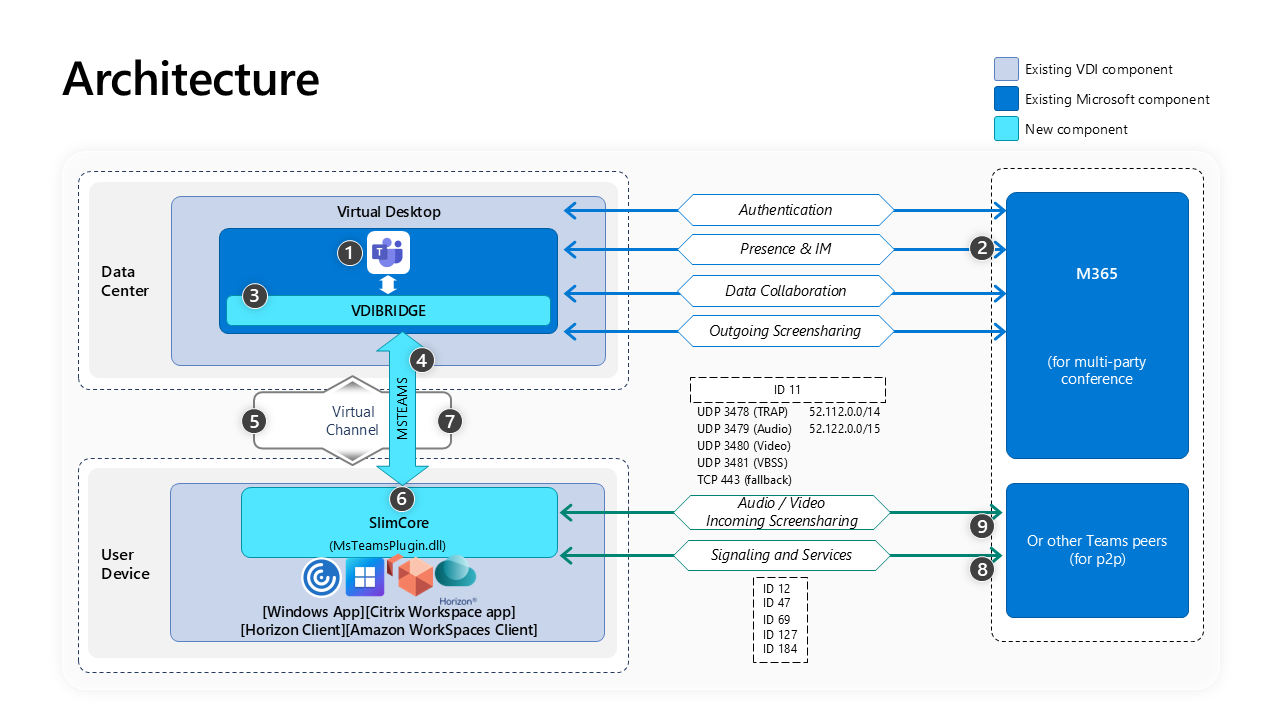
- Outgoing screensharing and app sharing will be processed on the virtual machine instead of the endpoint device.
- Previously, outgoing screensharing was processed on the endpoint device; this is now handled on the virtual machine.
- This change applies only to outgoing screensharing and app sharing.
- This change is enabled by default in supported environments and versions.
- Audio and video processing remains on the endpoint device with no change.
- Incoming screensharing continues to be rendered on the endpoint with no change.
- When a user shares content during a peer-to-peer call, the call is converted to a group call to route content through a conference server.
- When sharing in meetings or group calls, content continues to be routed through the conference server.
- Users will not see changes to the user interface or sharing workflow.
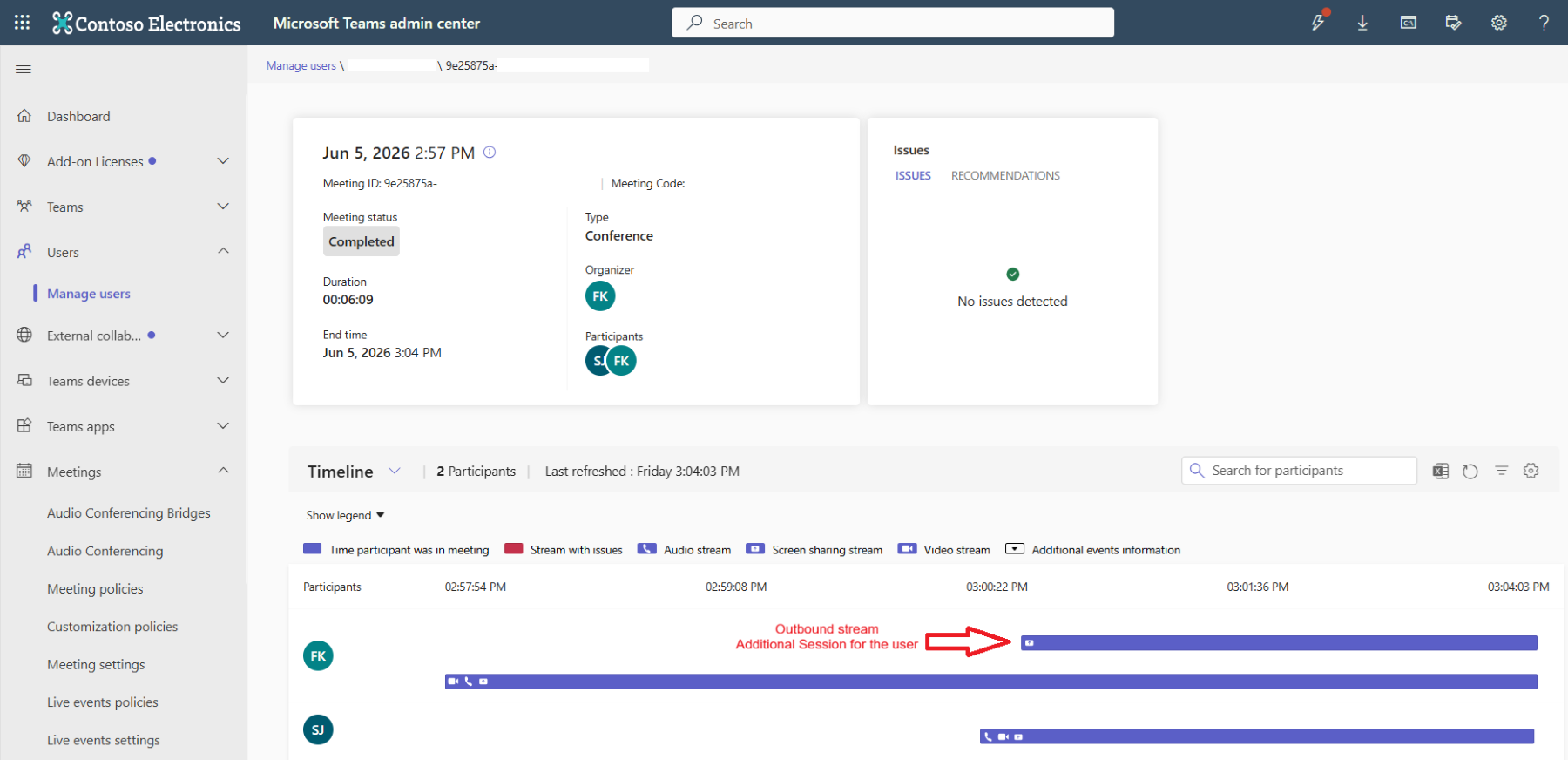
- Administrators can check in Teams Admin Center (under Users-->Manage Users-->click on a specific Meeting ID) that a new outbound Screen sharing stream session is added for the same user. This is in fact the new outgoing screensharing method.
- Virtual machines will experience increased CPU, memory, and bandwidth utilization for screensharing workloads.
- Virtual machines must be able to establish network connections to Microsoft Teams cloud services for media transport.
- Administrators must allow Microsoft 365 network endpoint categories 11 and 12 for virtual machines.
- Anonymous users joining meetings that enforce CAPTCHA cannot share screens.
- Some users may experience cursor delay when initiating app sharing for the first time; restarting the sharing session resolves the issue. This issue is resolved in Teams version 26149.x.x.x and later.
[Action Required or Recommendations]
Action is required to ensure optimal performance.
- Validate that virtual machines have sufficient CPU, memory, and network capacity to support screensharing workloads.
- Update network configurations to allow Microsoft 365 endpoint ID 11 and 12 for virtual machines.
- Run the Network Assessment Tool from within the virtual machine to verify connectivity. Download the Microsoft Teams Network Assessment Tool.
- Command: NetworkAssessmentTool.exe /infraconnectivitytest.
- Review test results to confirm successful connections to required Microsoft Teams service endpoints.
- Consider configuration options via registry key to limit resolution or frame rate if needed to reduce virtual machine resource consumption.
- Ensure Teams clients meet the minimum supported version requirements.
- Inform support and helpdesk teams about this change and potential performance considerations.
- Update internal documentation that references screensharing behavior in VDI environments.
Learn more:
- Microsoft 365 URLs and IP address ranges | Microsoft 365 for enterprise | Microsoft 365 | Microsoft Learn
- Screen sharing - New VDI solution for Teams | Microsoft Teams | Microsoft Learn
[Compliance considerations]
No compliance considerations identified. Review as appropriate for your organization.
More information
- learn.microsoft.com/microsoft-365/enterprise/urls-and-ip-address-ranges?view=o365-worldwide#microsoft-teams
- www.microsoft.com/download/details.aspx?id=103017
- learn.microsoft.com/microsoft-365/enterprise/urls-and-ip-address-ranges?view=o365-worldwide#skype-for-business-online-and-microsoft-teams
- learn.microsoft.com/microsoftteams/vdi-2#screen-sharing
Details
Platforms
- Windows
- Mac
Services
- Azure
- Mac
- Teams
- VDI
- Windows
- Windows 365
Category
- Plan for change
Microsoft tags
- Admin Action
- User Adoption
Related changes
- MC1239928 Microsoft Teams VDI: Retirement of WebRTC optimization and transition to SlimCore-based optimization (Windows endpoints) Message Center · Teams · Admin Low