MC778780 Microsoft Viva: Introducing custom fonts for SharePoint and Viva Connections Desktop preview
Primary service: Viva
ChangePilot summary
- Introduction of the SharePoint brand center, enabling the use of custom fonts to enhance organizational branding within SharePoint and Viva Connections Desktop experiences.
- Designated brand managers can upload, create, and manage brand assets, including custom fonts, in the brand center app for use across the organization's SharePoint sites.
- Microsoft provides a set of 8 default font packages, with the option for brand managers to create custom font packages for a more tailored branding experience.
- Custom fonts will initially be supported in specific components such as Welcome/Greeting text, Section Headings, Dashboard cards Level 1, and Resources, with plans to expand support to additional components in the future.
- Multi-geo considerations require custom fonts and the brand center app to be configured in the primary geo-location, with availability in additional geos dependent on SharePoint Organization Asset Libraries (OAL) and Public CDN being enabled.
History
Recorded changes
No changes recorded since ChangePilot first saw this post.
Microsoft message
With our new SharePoint brand center we are introducing the ability to use custom fonts to express your organization’s brand and creative expression in your Viva Connections Desktop experiences. Once the SharePoint brand center has been enabled in your organization, you will unlock the power of custom fonts within SharePoint and Viva Connections.
This change is associated with Microsoft 365 Roadmap ID: 374866
[When will this happen:]
Preview: we will begin rolling out in mid-April 2024 and expect to complete by June 2024.
[How will this affect your organization]
The custom fonts feature for the SharePoint brand center enables the use of custom fonts within SharePoint and Viva Connections Desktop experiences. Your organization’s designated brand manager will upload, create, and manage your organization’s brand assets, including organization fonts, in the brand center app making them available for use in the Change the Look experience to apply.
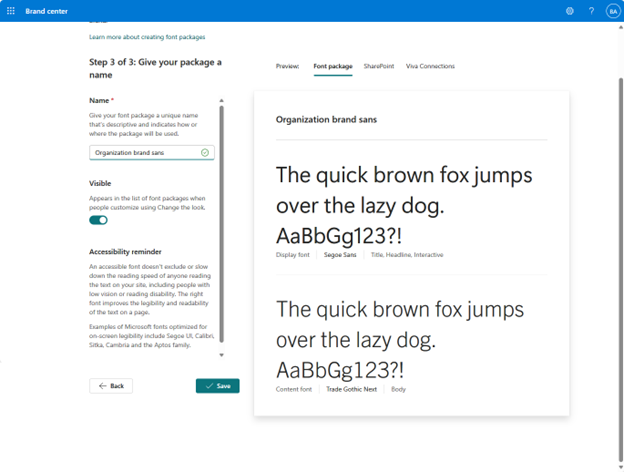
Brand managers, who are the site owners of the Brand center site, will upload and manage your organization fonts in the Brand fonts library of the SharePoint brand center app. After uploading and making a brand font visible for use the brand manager will be able to create custom font packages to utilize these fonts within SharePoint and Viva Connections Desktop.
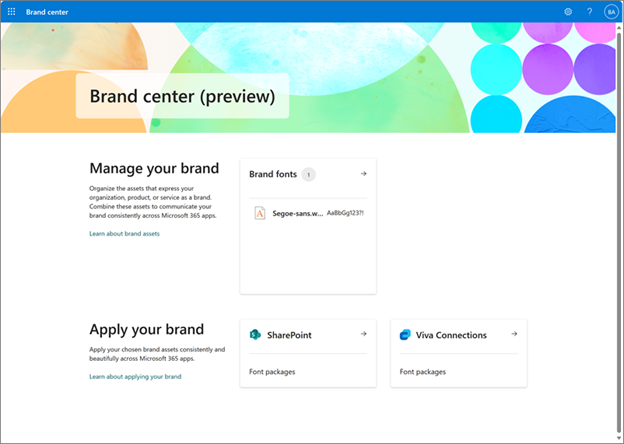
A font package is a combination of two font families that will be applied to the experiences uniformly as designated by the brand manager using the font package creation tool. Microsoft provides a set of 8 font packages available for use with no need to configure a font package in the brand center app.
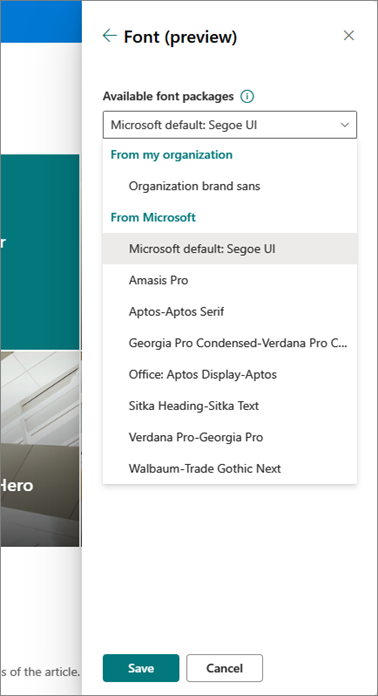
Microsoft provided default font packages:
- Microsoft default: Segoe UI
- Amasis Pro
- Aptos-Aptos Serif
- Georgia Pro Condensed-Verdana Pro Condensed
- Office: Aptos Display-Aptos
- Sitka Heading-Sitka Text
- Verdana Pro-Georgia Pro
- Walbaum-Trade Gothic Next
Note: In multi-geo environments custom fonts and the brand center app are configured in the primary geo. Custom fonts will be available in any additional geo where SharePoint Organization Asset Libraries (OAL) are utilized and Public CDN is enabled. If there are no OAL or public CDN in the geo, the custom fonts feature will not be enabled in the Change the Look experience for sites in that geo location.
Creating a custom font package in the SharePoint brand center app will enable the “From your organization” section of the Change the Look > Font(preview) experience.
With this initial preview custom fonts will be supported in the following:
- Welcome/Greeting text
- Section Headings
- Dashboard cards Level 1
- Resources
Over the coming months additional components will add support for custom fonts and will be communicated through the Message Center.
[What you need to do to prepare]
You may consider updating your training and documentation as appropriate.
To learn more about Multi-Geo, review: Multi-Geo Capabilities in OneDrive and SharePoint
More information
- img-prod-cms-rt-microsoft-com.akamaized.net/cms/api/am/imageFileData/RW1kDmR?ver=815c
- img-prod-cms-rt-microsoft-com.akamaized.net/cms/api/am/imageFileData/RW1kFWi?ver=5f43
- img-prod-cms-rt-microsoft-com.akamaized.net/cms/api/am/imageFileData/RW1kIzB?ver=7716
- learn.microsoft.com/microsoft-365/enterprise/multi-geo-capabilities-in-onedrive-and-sharepoint-online-in-microsoft-365?view=o365-worldwide
- www.microsoft.com/microsoft-365/roadmap?rtc=1%26filters=&searchterms=374866
Details
Platforms
- Web
Services
- Viva
Microsoft tags
- New Feature
- User Adoption