MC695492 SharePoint Tables: New Accessibility Labels
Primary service: SharePoint
ChangePilot summary
- Microsoft 365 is improving accessibility to SharePoint tables within the text webpart, allowing users to specify row and column layouts and provide alternative text labels for screen readers.
- The update, associated with Microsoft 365 Roadmap ID 184511, will roll out in early January 2024 and complete by the end of the month.
- Authors of SharePoint pages can make their tables more accessible by providing custom labels and indicating heading rows.
- Users can input an accessibility title and specify which rows or columns function as headers, beneficial for screen reader users to understand data categorization.
- No preparation is needed for this update, but users should be informed about this improvement.
History
Recorded changes
No changes recorded since ChangePilot first saw this post.
Microsoft message
Accessibility improvements to SharePoint tables within the text webpart allow users to specify row and column layouts, as well as provide alternative text labels for screen readers.
This message is associated with Microsoft 365 Roadmap ID 184511
[When this will happen:]
This update will begin rolling out in early January 2024 and should complete for all customers by the end of January 2024.
[How this will affect your organization:]
Authors of SharePoint pages can now make their tables accessible by providing custom labels and indicating heading rows.
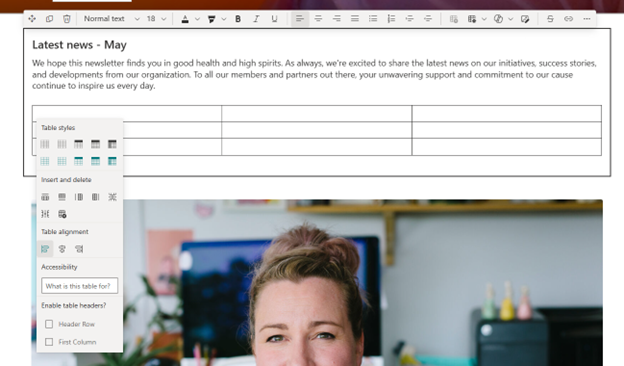
To access the table accessibility menu, right click into any cell. Here, you can input an accessibility title, and specify which rows or columns function as headers. This is useful to screen reader users because it allows them to know how your data is categorized. You can see this menu in Figure 1 below.
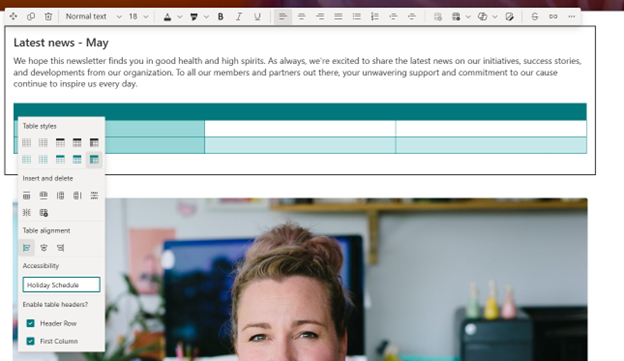
When you apply a style to your table, the rows and columns that function as headers in that style are marked accordingly automatically. You can give your table an accessibility label to communicate context of your table. This label will only surface when read aloud by the screen reader. Both features can be seen implemented in figure 2 below.
[What you need to do to prepare:]
You do not need to do anything to prepare for this update, but you may want to let your users know about this improvement.
More information
Details
Platforms
- Web
Services
- SharePoint
Microsoft tags
- New Feature
- Admin Impact