MC1557754 Continue using models after reaching usage limits with Copilot Credits
Primary service: M365 Copilot
ChangePilot summary
- Microsoft Copilot Chat and Office users can continue using selected models after hitting included usage limits by consuming Copilot Credits when usage-based billing is enabled.
- A new spending policy service, "Models with usage-based billing in Chat and Office," controls whether users can access credit-metered models and requires available credits.
- Copilot’s model picker will show models across Chat, Word, Excel, and PowerPoint, with unavailable models greyed out so users cannot select them.
- Admins should review Copilot spending policies, confirm service access and credit availability, and prepare users/support teams for the Auto vs. credit-consuming experience and new /cost prompt.
Latest update: Frontier start: early December 2026 (previously mid-November). Standard start: mid-December 2026 (previously early December).
What it means for you
What admins need to do
Review Copilot spending policies in the Microsoft 365 admin center and confirm whether the new "Models with usage-based billing in Chat and Office" service is included for the intended user groups. Verify billing method, available Copilot Credits, policy scope, and any spending limits/alerts. If Auto-apply new services is disabled, add the service manually. Brief helpdesk and user support teams on the new credit icon, /cost command, and the difference between Auto and credit-metered model usage.
Impact on users
Users with a Microsoft 365 Copilot license may see a model usage limit message and then either continue with Auto at no credit cost or, if their tenant allows it and they have credits, continue with the selected model using Copilot Credits. The model picker will also show additional models, but unavailable ones will be greyed out. Users may see a new credit indicator and can use /cost to check current session usage.
If you miss it
If IT does not review spending policies and credit availability, eligible users may be unable to use credit-metered models as expected after reaching included limits, or they may encounter confusing access issues and greyed-out models. The organization could also fail to control Copilot spending as intended, leading to unexpected usage or support tickets from users who do not understand why selected models are unavailable.
- Admin controls available
- Yes
- Licences affected
- Copilot
History
Recorded changes
-
- Frontier start: early December 2026 (previously mid-November).
- Standard start: mid-December 2026 (previously early December).
Microsoft message
Updated November 20, 2026: We have updated the timeline. Thank you for your patience.
[What and Why:]
We’re introducing the option to continue using models in Copilot Chat and Office through usage-based billing (UBB) after reaching the usage limits included in a Microsoft 365 Copilot license. After reaching a limit, users can continue with Auto without consuming Copilot Credits or, if they have UBB enabled, can continue with the selected model by consuming Copilot Credits. New credit indicators in the UI help users understand when their work consumes Copilot Credits, while spending policies give administrators control over access and spending.
This capability was originally announced in MC1479276 and is rolling out alongside the models available only through usage-based billing announced in MC1519122.
Additionally, models offered in Chat and Word, Excel, and PowerPoint will now be visible in the model picker. Models that a user does not have access to will be greyed out and users will not be able to select them.
[Rollout Schedule:]
- Frontier: Rolling out in early December 2026.
- General availability: Planned for mid-December 2026 in the Worldwide production cloud.
[Impact on Your Organization:]
Who is affected: End users with a Microsoft 365 Copilot license. To use models with usage-based billing in Chat and Word, Excel and PowerPoint, users must also have access to available Copilot Credits through an applicable spending policy that includes the Models with usage-based billing in Chat and Office service.
Platforms/Services: Copilot Chat in the Microsoft Copilot app and Copilot in Word, Excel, and PowerPoint across web, desktop, and mobile.
What will happen:
- When users reach an applicable model usage limit included in their license, they can continue with Auto without consuming Copilot Credits. Users that have UBB enabled can instead continue with the selected model using Copilot Credits.
- The new Models with usage-based billing in Chat and Office service will be available in spending policies.
- Access to models with usage-based billing requires the service to be included in an applicable spending policy, with credits available. Users without this access cannot use models with usage-based billing.
- Existing spending policies with Auto-apply new services enabled automatically include newly supported services as they become available. Policies with this setting disabled require administrators to add the service.
- A new credits icon helps users understand credit availability and whether their current experience consumes credits:
- A filled icon indicates that usage is metered and consumes Copilot Credits.
- An unfilled icon indicates that usage is not metered and does not consume Copilot Credits.
- Hovering over the icon shows credit usage details and an option to open a pane with additional information.
- Users can type and submit /cost as a prompt in Copilot to view details about their current session.
- Users will see models offered in Chat and Word, Excel, and PowerPoint visible in the model picker. If the user does not have access to a model, it will be greyed out, and the user will not be able to select it.
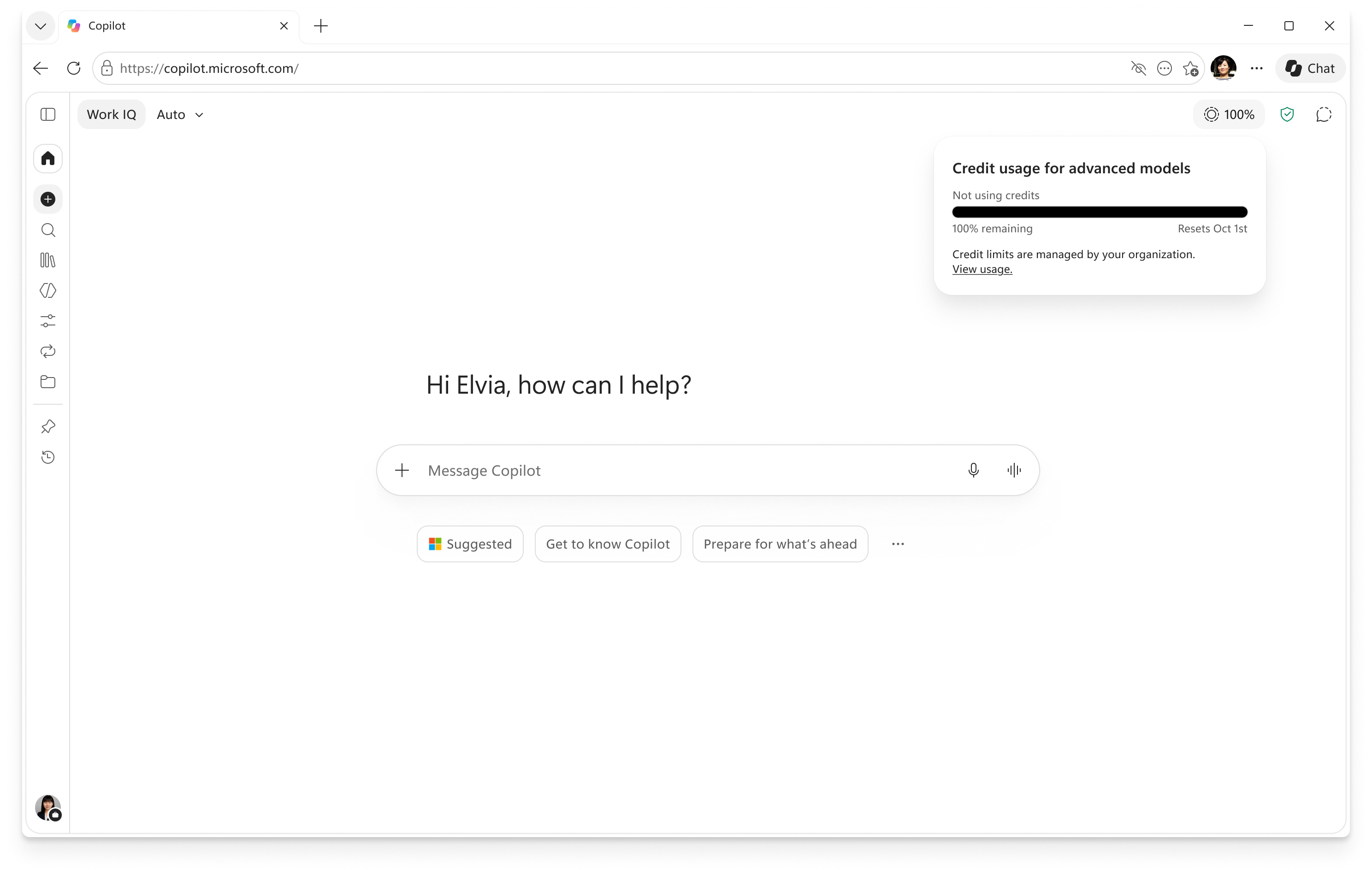
Image of credit icon and usage details.
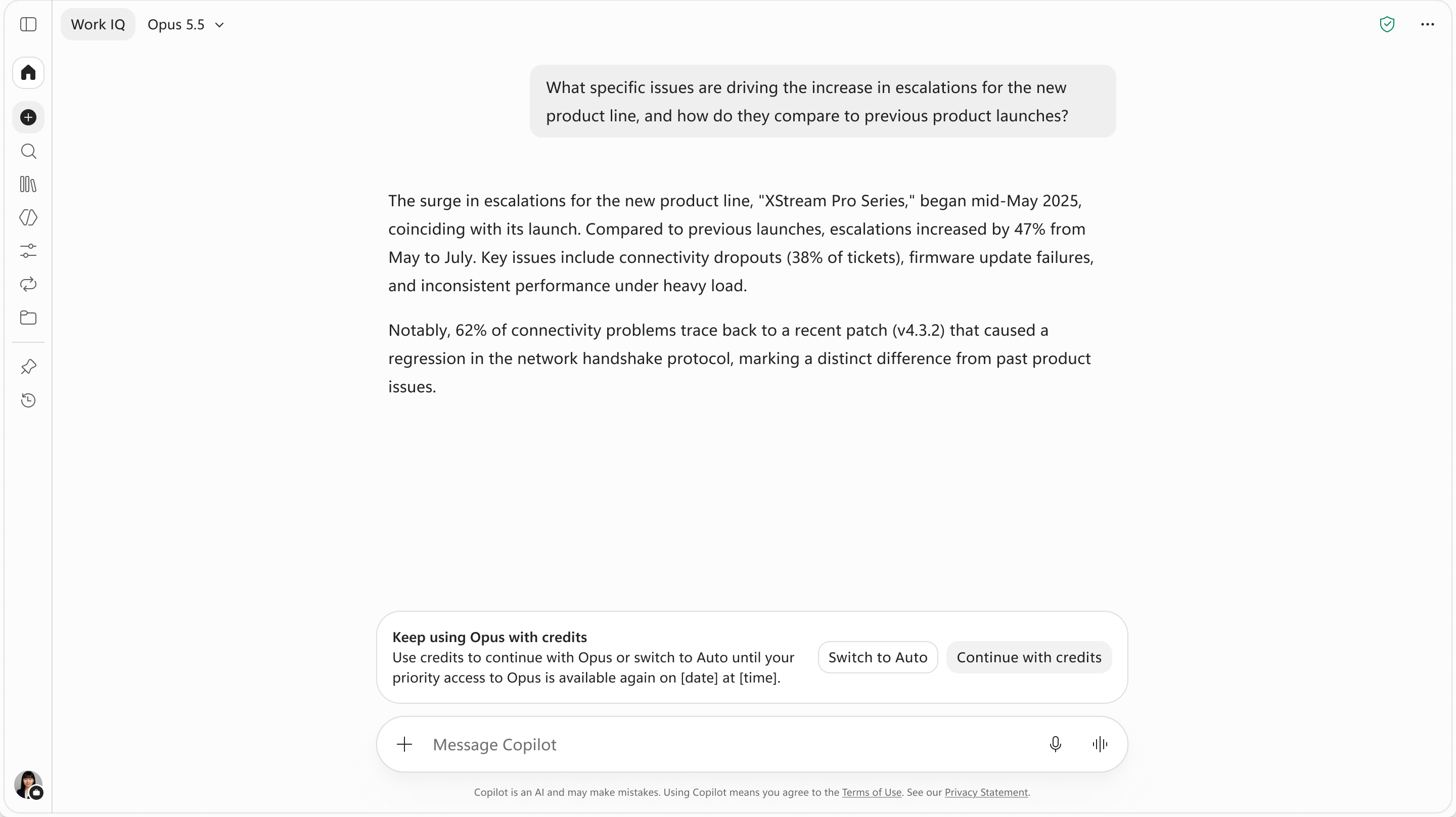
Image of banner allowing users to continue with credits if they have UBB enabled.
Action Required/Recommendations:
- Review existing spending policies. In the Microsoft 365 admin center, go to Copilot > Cost Management > Configuration and review the policies that apply to your users.
- Confirm service access. To allow usage-based model access, ensure the applicable policy includes Models with usage-based billing in Chat and Office, has an appropriate billing method, and has credits available.
- Review policy scope, limits, and alerts. Policies can apply to all users or selected Microsoft Entra ID security groups. Confirm the intended audience and configure spending limits and notifications.
- Prepare users and support teams. Explain the choice between Auto and credit-consuming model usage, the new credit indicators, and
/cost.
Use these resources to configure and manage access:
- Set up usage-based billing for Copilot Credits
- Manage spending policies and service access
- Monitor Copilot Credit spending
[Compliance considerations:]
| New way for end users to interact with generative AI | Yes | Eligible users can continue using a selected model after reaching an included usage limit by consuming Copilot Credits. |
| Administrative control, including Microsoft Entra ID group membership | Yes | Administrators control access through service selection in spending policies. Policies support security-group targeting, spending limits, and alerts. [learn.microsoft.com] |
More information
- learn.microsoft.com/copilot/implement/usage-based-billing-copilot-credits-setup
- learn.microsoft.com/en-us/copilot/implement/usage-based-billing-manage-copilot-credits
- learn.microsoft.com/en-us/copilot/implement/usage-based-billing-copilot-credits-monitor-spending
- learn.microsoft.com/en-us/copilot/implement/usage-based-billing-manage-copilot-credits
Details
In weekly changes
Platforms
- Web
- Desktop
- Mobile
Services
- Excel
- M365 Copilot
- PowerPoint
- Word
Category
- Plan for change
Microsoft tags
- Admin Action
- Feature Update
- Highlighted
Related changes
- MC1479276 Microsoft Copilot: Evolving the Copilot pricing model and new FinOps capabilities for AI Message Center · M365 Copilot · Admin Medium
- MC1519122 UBB models in Chat and Word, Excel, and PowerPoint via the model selector Message Center · M365 Copilot · Admin Medium