MC1530612 Pin Microsoft Copilot app setting for users with a paid Microsoft 365 Copilot license
Primary service: M365 Copilot
ChangePilot summary
- Microsoft 365 admin center is adding a new pinning option for Microsoft Copilot that targets users with a paid Microsoft 365 Copilot license.
- The existing taskbar pinning setting behavior in the admin center is changing so "Do not pin" is no longer preselected by default when no choice has been saved.
- The update affects admins managing Copilot taskbar pinning and uses Microsoft Entra plus the existing Intune policy flow to apply the setting.
- Admins should review the current pinning configuration and, if they want license-based targeting, ensure the configuring admin can create security groups in Microsoft Entra.
What it means for you
What admins need to do
Review the Copilot taskbar pinning setting in the Microsoft 365 admin center and decide whether to keep existing behavior, continue pinning for all users, or move to license-based targeting. If you plan to use the paid-license option, verify the admin account has permission to create security groups in Microsoft Entra so the license-based group can be created and saved. Update internal documentation and helpdesk guidance to reflect the new selection options.
Impact on users
Users may see Microsoft Copilot pinned to the Windows taskbar depending on the organization’s chosen setting. If IT keeps the current configuration, behavior should remain the same; if license-based targeting is enabled, only users with a paid Microsoft 365 Copilot license will get the pin through this setting.
If you miss it
If IT does nothing, the new selection will not be used and the admin center may show the setting as unselected when no choice has been saved, which can create confusion during review. If license-based targeting is desired but the configuring admin lacks Microsoft Entra group-creation permission, the setting cannot be saved and eligible users will not receive the intended taskbar pin. Existing pinning behavior itself will continue according to the last saved configuration.
- Admin controls available
- Yes
- Licences affected
- Copilot
History
Recorded changes
No changes recorded since ChangePilot first saw this post.
Microsoft message
[What and Why:]
We are updating the Pin Microsoft Copilot app to the Windows taskbar setting in the Microsoft 365 admin center based on customer feedback, giving administrators more flexibility and clarity when managing Copilot taskbar pinning. This update introduces two changes:
- New option to pin for users with a paid Microsoft 365 Copilot license: Admins will be able to target taskbar pinning to users with a paid Microsoft 365 Copilot license.
- "Do not pin" will no longer be preselected by default: When no pinning preference has been explicitly saved, the setting will open with no option selected. This changes only what the admin center displays. It does not change how the app is pinned on any device.
[Rollout Schedule:]
- General Availability (Worldwide): Rollout will begin in early December 2026 and is expected to complete by mid-December 2026.
[Impact on Your Organization:]
Who is affected
- Administrators who manage Microsoft Copilot taskbar pinning.
- Organizations that use this setting, including those that want to target taskbar pinning to users with a paid Microsoft 365 Copilot license.
Platforms and services
- Microsoft 365 admin center
- Microsoft Entra
- Microsoft Intune
- Microsoft Copilot app for Windows
What will happen
- The setting is available in Microsoft 365 admin center > Copilot > Settings > Pin Microsoft Copilot app to the Windows taskbar.
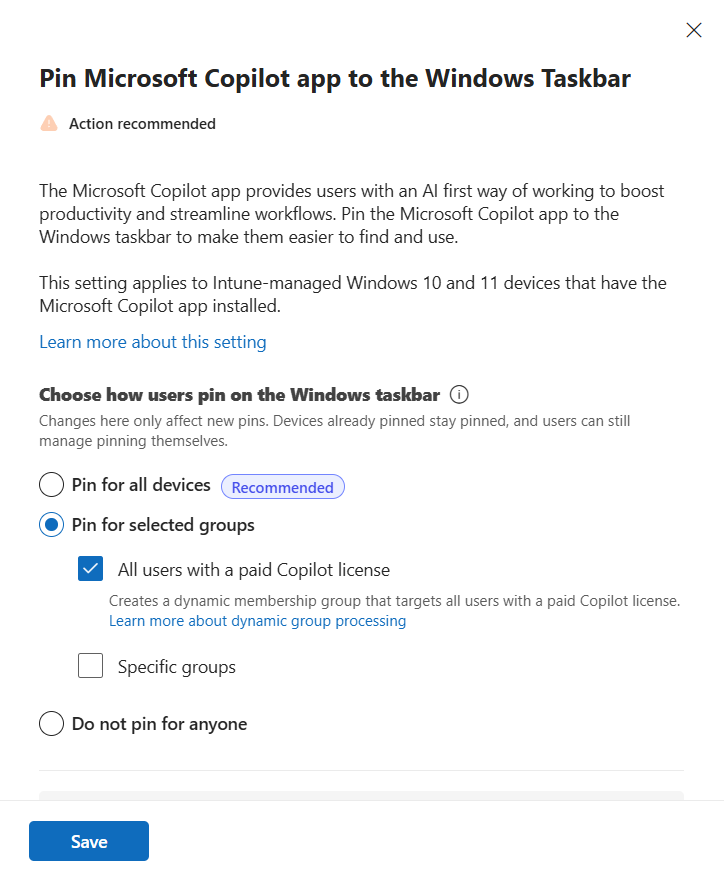
- A new Pin for users with a paid Microsoft 365 Copilot license option will be available. When an admin selects and saves this option, the Microsoft 365 admin center will create a license-based group in Microsoft Entra on the admin's behalf and use the existing Intune policy flow to target eligible users.
- To target pinning to a custom mix of user segments in your tenant, you can use the existing Pin for selected groups option in addition to the new option.
- When an admin has not configured the setting, Do not pin for anyone will no longer be preselected. After this update, no option will be preselected until an admin makes an explicit choice.
- If your organization has not previously configured this setting, no action is needed. To enable pinning, select and save a pinning option.
- If you previously saved Do not pin, no new pins will be added, but the setting will appear with no option selected after the update. To have the admin center explicitly record and display Do not pin, select and save it again.
- If you previously saved Pin for all devices or Pin for selected groups, no action is needed. Your existing selection will be preserved, and pinning will continue according to that configuration. You can select the new option if it better fits your organization's needs.
- In all cases, Do not pin only stops new pins from being added through this setting. It does not remove pins that already exist.
Pin for all users with a paid Copilot license
[Action Required/Recommendations:]
We recommend that you review your organization's preferred Microsoft Copilot taskbar pinning configuration.
If you plan to use the paid-license targeting option, ensure that the administrator configuring the setting has permission to create security groups in Microsoft Entra. If the administrator does not have this permission, the setting cannot create the required license-based group, and the change will not be saved.
Your organization's existing permissions and eligibility requirements for managing Microsoft Copilot taskbar pinning continue to apply. After the update is available:
- Go to Microsoft 365 admin center > Copilot > Settings > View all.
- Select Pin Microsoft Copilot app to the Windows taskbar.
- Review the available pinning options.
- Choose the option that fits your organization. To pin the app only for users with paid Microsoft 365 Copilot licenses, select Pin for users with a paid Microsoft 365 Copilot license.
- Select Save.
[Learn more]
- Pin Microsoft Copilot to the Windows taskbar | Microsoft Learn
- Understand and manage dynamic group processing in Microsoft Entra ID - Microsoft Entra ID | Microsoft Learn
[Compliance considerations:]
No compliance considerations identified. Review as appropriate for your organization.
More information
Details
In weekly changes
Platforms
- Windows
Services
- Admin
- Entra
- Intune
- M365 Apps
- M365 Copilot
Category
- Stay informed
Microsoft tags
- Admin Action
- Feature Update
- New Feature
- User Adoption