MC1458476 Classic Outlook theme experience for Outlook on the web and Outlook for Windows
Primary service: Exchange
ChangePilot summary
- Microsoft is adding an optional Outlook appearance setting that makes Outlook on the web and the new Outlook for Windows look and feel more like classic Outlook.
- The setting changes visual styling, layout, typography, icons, and some interactions, but only for the individual user who turns it on.
- Most users will see the standard new Outlook experience unless they choose to enable the setting; some users moving from classic Outlook may get it enabled by default.
- This does not change classic Outlook for Windows, mailbox data, permissions, organizational settings, or existing admin controls for new Outlook availability/migration.
- No admin action is required, but Microsoft recommends briefing help desk and updating user guidance.
What it means for you
What admins need to do
Review the change with the help desk and service desk so they can recognize appearance-related questions in Outlook on the web and new Outlook for Windows. Update internal user guidance and training materials to explain where the setting is located (Settings > General > Appearance), what it does, and that it only changes the individual user experience. If you support a classic-to-new Outlook transition, prepare communications for users who may see the familiar theme enabled by default.
Impact on users
Users of Outlook on the web and the new Outlook for Windows will be able to switch on a classic-style look and feel from Outlook settings. For most users, nothing changes unless they choose to enable it, but some users transitioning from classic Outlook may find it already turned on. The setting only affects the appearance and selected interactions in their own Outlook experience.
If you miss it
If IT does nothing, the feature will still appear in Outlook and some users may encounter a different look and feel without preparation, which could increase help desk questions during the rollout. There is no expected service outage or configuration loss, but teams may need to handle more user confusion and explain that the setting is optional and user-controlled.
- Admin controls available
- Yes
History
Recorded changes
No changes recorded since ChangePilot first saw this post.
Microsoft message
[What and why]
We're introducing a new optional setting in Outlook on the web and the new Outlook for Windows that adjusts the experience to more closely resemble classic Outlook for Windows. When enabled, the setting applies coordinated changes across the Outlook experience, including visual styling, layout, typography, icons, and selected interactions.
This update is designed to help users who are transitioning from classic Outlook by providing a more familiar experience while maintaining the capabilities of the new Outlook.
The setting will be available to all users and can be turned on or off at any time. It will be off by default for most users. As part of a phased rollout, Microsoft will enable the setting by default for some users moving from classic Outlook to the new Outlook. Those users can change the setting at any time.
This setting affects only the experience in Outlook on the web and the new Outlook for Windows. It does not affect the user interface or behavior of classic Outlook for Windows.
This feature does not automatically migrate users from classic Outlook to the new Outlook and does not affect or override any existing administrator configurations used to manage new Outlook availability or migration experiences.
[Rollout schedule]
- Targeted Release (Worldwide): Beginning in mid-August 2026 and expected to complete in late September 2026
- General Availability (Worldwide): Beginning in late-September 2026 and expected to complete in late-October 2026
[Impact on your organization]
Who is affected
- Users of Outlook on the web
- Users of the new Outlook for Windows
- Organizations transitioning users from classic Outlook for Windows to the new Outlook
Platforms and services
- Outlook on the web
- New Outlook for Windows
What will happen
- A new optional setting will be available in Outlook settings.
- All users of Outlook on the web and the new Outlook for Windows will see the setting.
- Most users will continue to see the standard new Outlook experience unless they choose to enable the setting.
- Some users transitioning from classic Outlook to the new Outlook may have the setting enabled by default to provide a more familiar experience during the transition.
- Users can enable or disable the setting at any time.
- The setting affects only the individual user's visual Outlook experience.
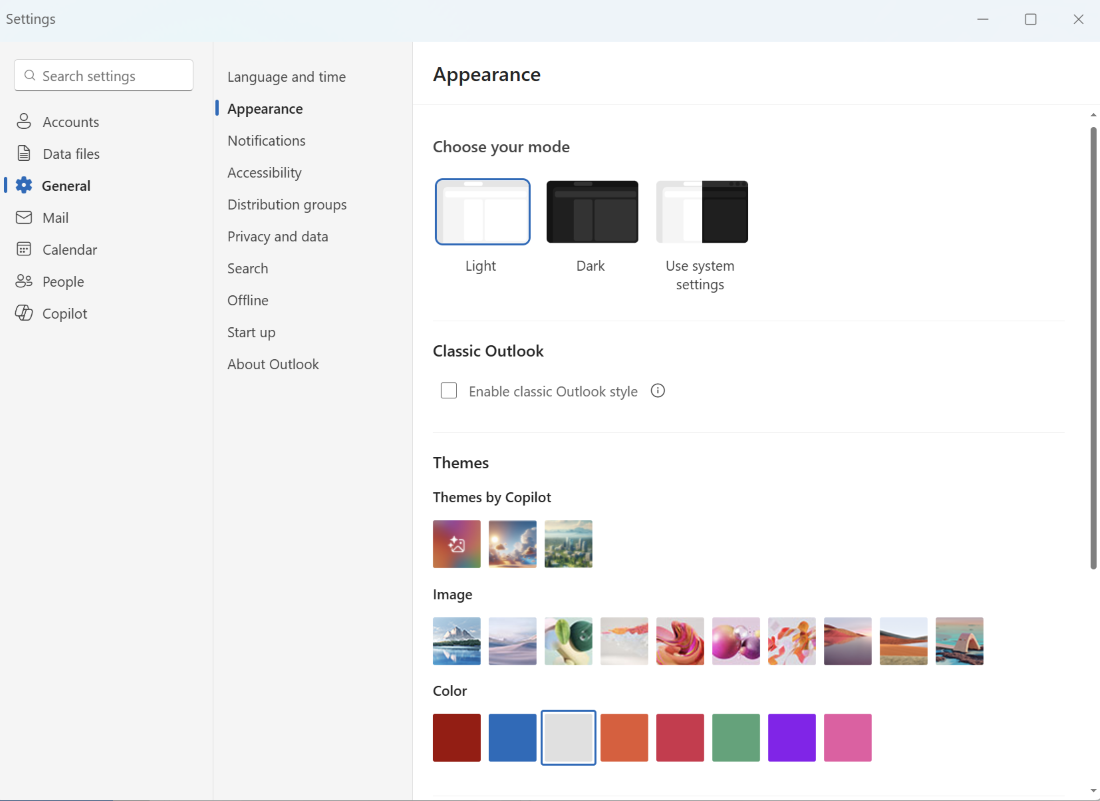
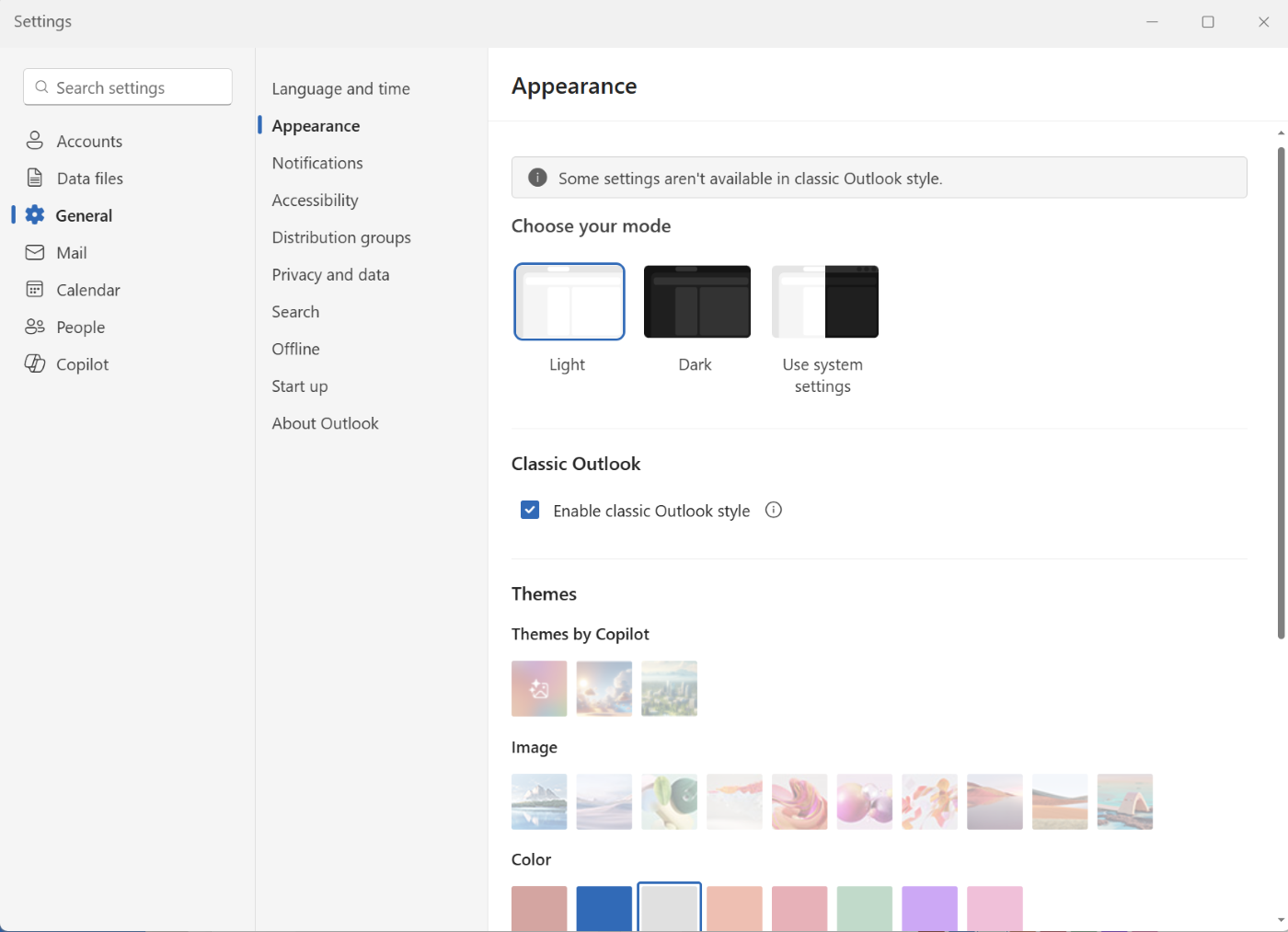
- The setting can be managed from Settings > General > Appearance.
- This change does not modify mailbox data, permissions, organizational settings, or existing Outlook functionality.
- This change does not affect or override administrator controls governing migration to or availability of the new Outlook.
Screenshot 1 - OFF setting view:
Screenshot 2 - ON setting view:
[Action required and recommendations]
No admin action is required.
We recommend that administrators:
- Inform help desk and change management teams about the new optional setting.
- Prepare support documentation for users who may notice visual and interaction changes.
- Communicate that most users will not experience any change unless they enable the setting.
- Communicate that some users transitioning from classic Outlook may receive the experience by default.
- Inform users that they can manage the setting in Settings > General > Appearance.
[Compliance considerations]
No compliance considerations identified. Review as appropriate for your organization.
Details
Platforms
- Web
- Windows
Services
- Exchange
Category
- Plan for change
Microsoft tags
- Admin Action
- New Feature
- User Adoption
- Highlighted