MC1442609 Teams shared display mode and peripheral detection for BYOD spaces
Primary service: Teams
ChangePilot summary
- Microsoft Teams is adding shared display mode and enhanced peripheral detection for BYOD meeting spaces.
- When certified room devices or room-associated USB peripherals are detected, Teams may automatically select room audio and activate meeting room mode.
- Meeting room mode can use room devices for camera, microphone, and speaker, and helps prevent private content from appearing on shared displays.
- Administrators get new BYOD peripheral inventory, usage, and health reporting in the Teams Pro Management portal, with optional opt-out controls.
- Review BYOD meeting room deployment, validate peripheral association/reporting decisions, and communicate the new experience to affected users.
What it means for you
What admins need to do
Review your BYOD meeting room inventory and decide whether to allow peripheral association and BYOD device reporting in Teams Pro Management. Validate which shared room peripherals should be associated with rooms, confirm whether your tenant should opt out of peripheral data collection, and brief helpdesk and meeting-space owners on how meeting room mode behaves. Update user guidance for users who join meetings from BYOD spaces, including how to turn off automatic meeting room mode if needed.
Impact on users
Users joining meetings in BYOD spaces may see room audio selected automatically and, when a certified room device or room peripheral is detected, Teams may switch into meeting room mode. This can change which camera, microphone, and speaker are used and can help keep personal content off shared room displays. Users can disable automatic meeting room mode activation in Teams settings if they prefer.
If you miss it
If this is missed, users in BYOD meeting spaces may encounter the new room-device experience without preparation, leading to confusion about automatically selected audio, camera, and shared display behavior. IT may also miss the opportunity to enable or restrict peripheral association and reporting choices, which could reduce visibility into shared room device inventory and health or leave privacy expectations unclear for users and room owners.
- Admin controls available
- Yes
History
Recorded changes
No changes recorded since ChangePilot first saw this post.
Microsoft message
[What and why]
We're introducing Teams shared display mode and enhanced peripheral detection for bring-your-own-device (BYOD) meeting spaces. These updates help users join meetings more seamlessly using certified room devices while improving privacy by preventing personal content from appearing on shared room displays. The update also provides administrators with improved inventory management and reporting capabilities through the Teams Pro Management portal.
[Rollout schedule]
- Targeted Release: Beginning in late July 2026 and is expected to complete by early August 2026
- General Availability (DoD): Beginning in early August 2026 and is expected to complete by mid-August 2026
[Impact on your organization]
Who is affected
- Organizations using Teams BYOD meeting spaces
- Users who join Teams meetings using Teams Rooms-certified AV bars or room-associated USB peripherals
- Administrators who manage BYOD devices and reporting in the Teams Pro Management portal
Platforms and services
- Microsoft Teams
- Teams BYOD meeting rooms
- Teams Rooms-certified peripherals
- Teams Pro Management portal
What will happen
For users
When a Teams Rooms-certified AV bar or associated room peripheral is detected:
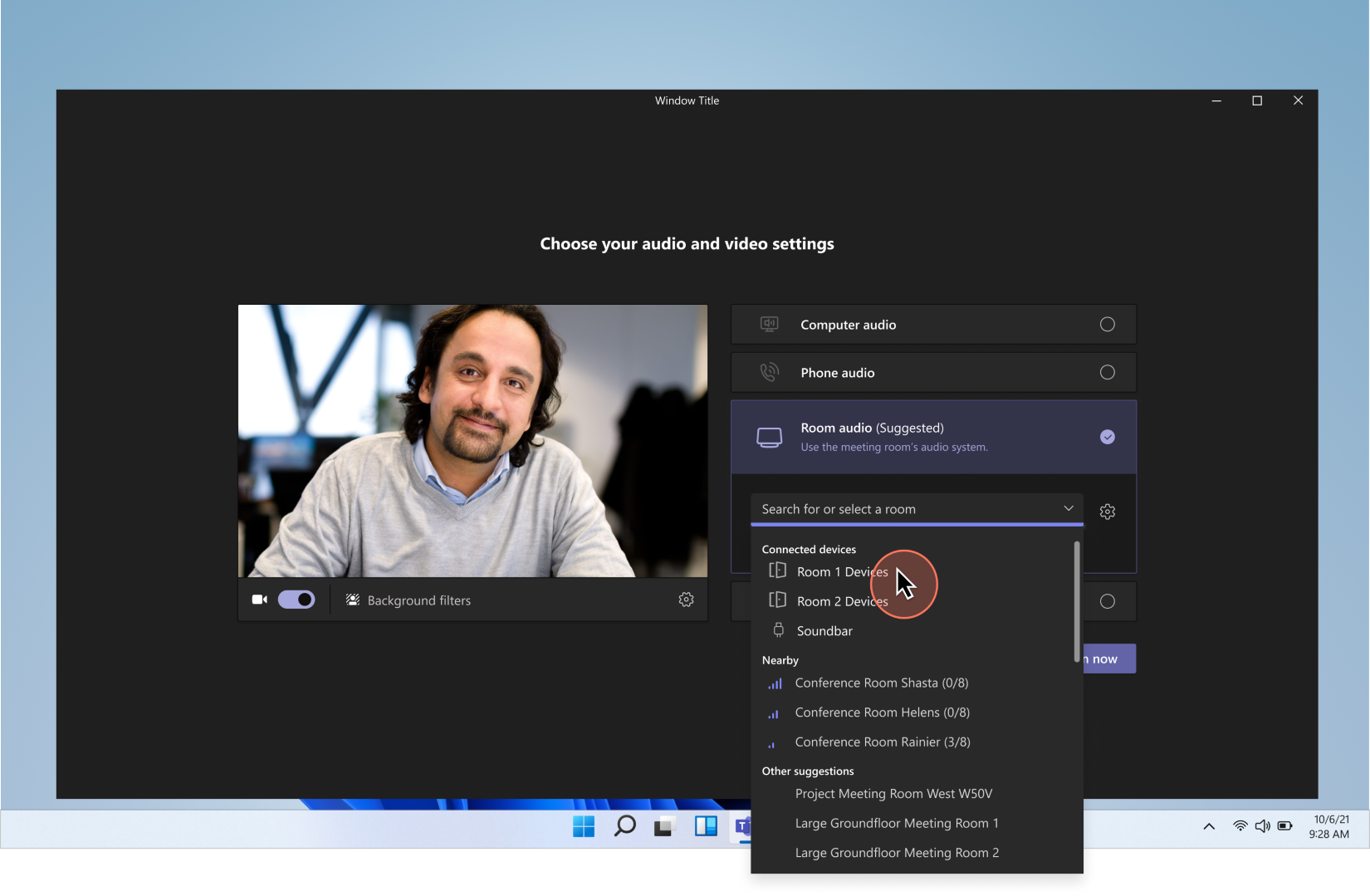
- Room audio may be automatically selected in the Teams pre-join experience.
- Meeting room mode may automatically activate when users join using room audio and a connected room-associated USB peripheral.
- Meeting room mode enables:
- Use of room devices as the active camera, microphone, and speaker.
- Shared display mode, which helps prevent private content from being shown on shared room displays.
- Automatic disabling of voice isolation during meetings.
- Automatic enablement of speaker attribution when transcription is enabled, subject to tenant policies and licensing requirements.
- Users can disable automatic meeting room mode activation in Teams > Settings > Devices.
- Use of room devices as the active camera, microphone, and speaker.
For administrators
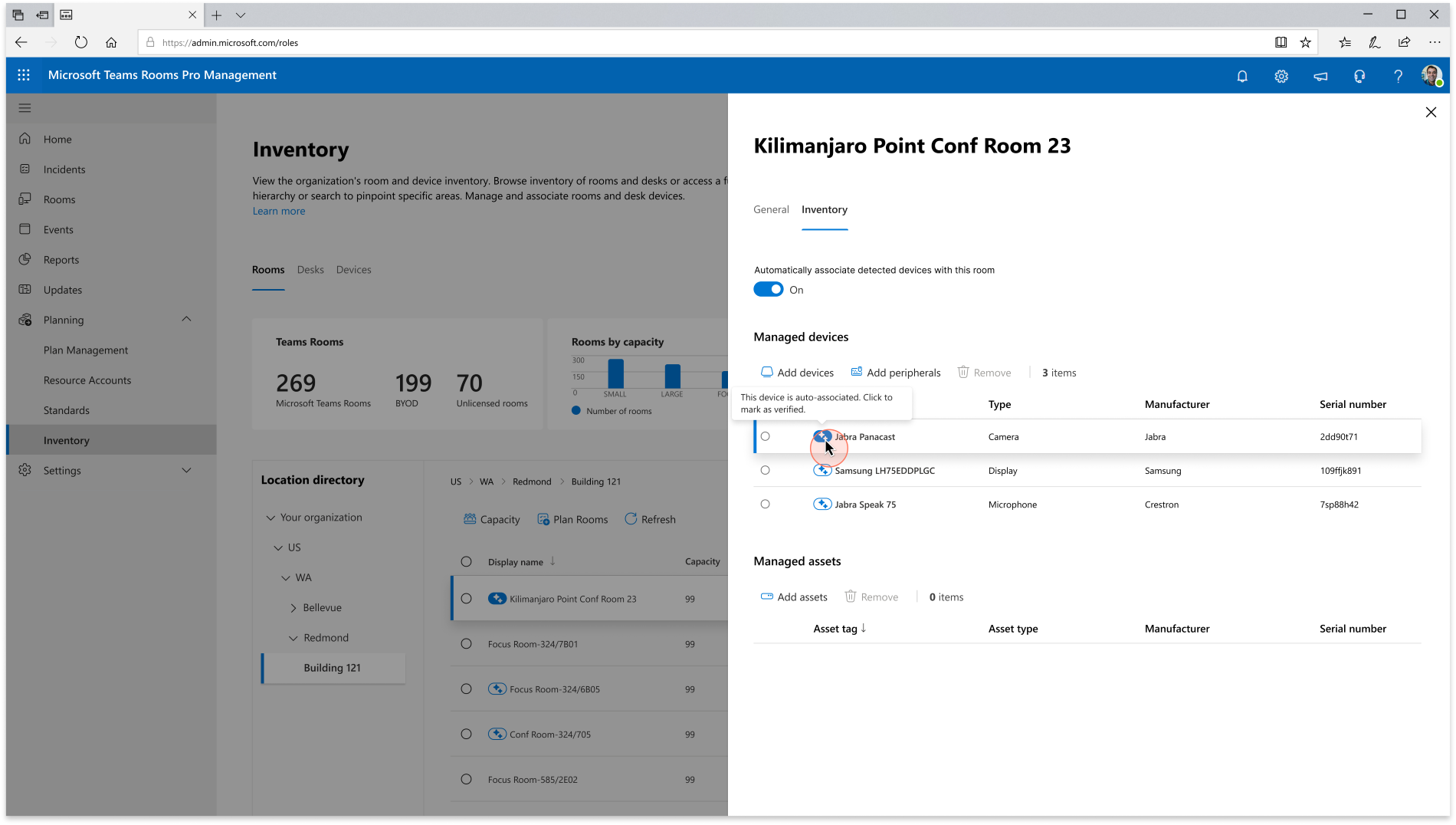
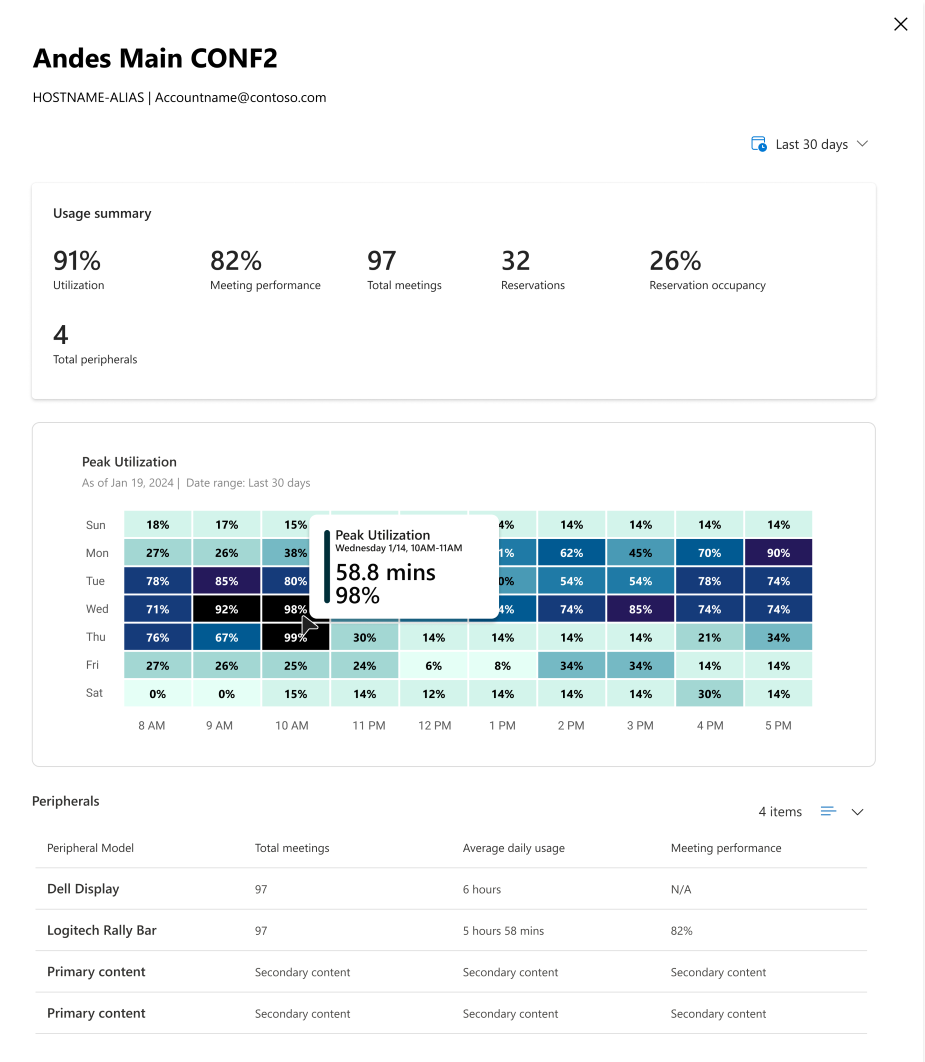
- BYOD peripheral data will be collected and available by default in the Teams Pro Management portal:
- Administrators can associate validated peripherals with meeting rooms to enable automatic meeting room mode activation.
- Additional reporting and device health insights will be available.
- Insights are limited to validated shared room devices. Personal device data is not visible to administrators.
- Existing administrative controls can be used to opt out of peripheral data collection.
[Action required and recommendations]
Review your BYOD meeting room deployment and determine whether peripheral association and reporting capabilities are appropriate for your organization.
We recommend that administrators:
- Familiarize themselves with meeting room mode behavior and activation requirements.
- Communicate the new meeting room experience to affected users.
- Review peripheral association and reporting capabilities in the Teams Pro Management portal.
- Evaluate existing policies related to BYOD meeting spaces and adjust them if necessary.
No additional technical prerequisites are required.
Learn more
[Compliance considerations]
| Question | Answer |
| Does this change alter how admins monitor, report on, or demonstrate compliance activities? | Yes. Administrators will have access to new reporting and device health insights for validated shared BYOD meeting room peripherals through the Teams Pro Management portal. |
| Does this change store new customer data or collect new organizational data? | Yes. BYOD peripheral inventory, usage, and health data for validated shared room devices will be collected and made available in the Teams Pro Management portal by default. |
| Does this change include an admin control? | Yes. Administrators can opt out of peripheral data collection by using existing administrative controls. |
| Does this change allow users to enable or disable the feature themselves? | Yes. Users can disable automatic meeting room mode activation in Teams by navigating to Settings > Devices. |
More information
Details
Platforms
- Desktop
- Mac
Services
- Admin
- MTR
- Teams
Category
- Stay informed
Microsoft tags
- Admin Action
- New Feature
- User Adoption
- Highlighted