MC1422063 Improved Windows Desktop sync error messages for max path length
Primary service: OneDrive
ChangePilot summary
- OneDrive for Business on Windows desktop will show clearer max-path sync errors when file or folder paths exceed the 520-character limit.
- The sync client will keep running and guide users through custom rename and move steps instead of stopping until the issue is fixed.
- The updated experience will show how many characters a path exceeds the limit, highlight renameable items, and allow renames beyond the Windows 260-character Explorer limit.
- This affects all users of the OneDrive sync client on Windows desktop.
- No admin action is required, but helpdesk teams should be briefed and internal troubleshooting guidance updated if needed.
Latest update: Standard start: January 2027 (previously late October 2026). Standard end: late January 2027 (previously late November 2026).
What it means for you
What admins need to do
Notify helpdesk and support staff about the improved OneDrive max-path error handling so they can adjust troubleshooting guidance. Update any internal knowledge articles or user instructions that describe resolving OneDrive sync failures caused by long file or folder paths.
Impact on users
Users who hit OneDrive path-length limits on Windows will see a clearer error experience and a guided way to rename or move items so syncing can continue. The sync client will stay running, and users may be able to fix some long-path issues directly instead of stopping work to contact support.
If you miss it
If IT does nothing, the feature still rolls out automatically, so there is no service interruption risk. However, helpdesk teams may continue using older troubleshooting steps and users may be less prepared for the new guided recovery flow, which could slightly slow support interactions until documentation is updated.
- Admin controls available
- No
History
Recorded changes
-
- Standard start: January 2027 (previously late October 2026).
- Standard end: late January 2027 (previously late November 2026).
-
- Standard start: late October 2026 (previously early October 2026).
- Standard end: late November 2026 (previously late October 2026).
-
- Standard start: early October 2026 (previously mid-September 2026).
- Standard end: late October 2026 (previously mid-October 2026).
-
- Standard start: mid-September 2026 (previously mid-August 2026).
- Standard end: mid-October 2026 (previously mid-September 2026).
-
- Standard start: mid-August 2026 (previously late July 2026).
- Standard end: mid-September 2026 (previously mid-August 2026).
Microsoft message
Updated October 27, 2026: We have updated the timeline. Thank you for your patience.
[What and why]
We are improving the OneDrive sync experience on Windows desktop to provide clearer, more actionable guidance when file and folder paths exceed the supported 520-character limit. The updated experience will show exactly how many characters a path exceeds the limit and will provide a guided flow to rename or move affected items so they can sync successfully.
This improvement addresses a common OneDrive sync issue by reducing user confusion, minimizing workflow disruption, and helping users resolve errors faster.
This update is associated with Microsoft 365 Roadmap ID 557563.
[Rollout schedule]
General Availability (Worldwide): Beginning January 2027 (previously end of October 2026) and expected to complete by end of January 2027 (previously end of November 2026)
[Impact on your organization]
Who is affected
- All users of the OneDrive sync client on Windows desktop
Platforms and services
- OneDrive for Business (Windows desktop sync client)
What will happen
Max path errors are one of the most commonly reported issues by OneDrive sync users. Currently, when a file or folder path exceeds the 520-character sync limit, the error message only states how many characters the path exceeds the limit and asks users to shorten it. In addition, File Explorer limitations may prevent users from renaming paths over 260 characters, and the sync client may stop syncing until the issue is resolved.
As part of this improved error experience, when users encounter max path errors, the sync client will continue running and users will be guided through a custom rename and move experience.
With this update:
- The sync client will continue running when users encounter max path errors
- Users will be guided through a custom rename and move experience to resolve issues directly
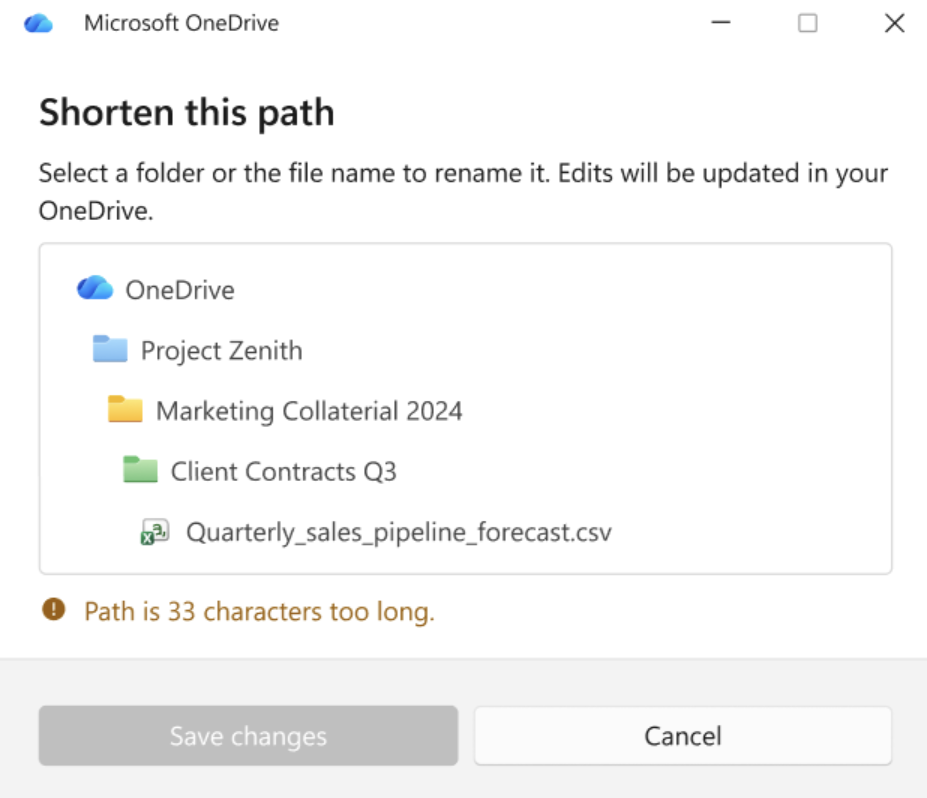
The rename experience will:
- Show the number of over-limit characters
- Highlight which items in the path can be renamed
- Allow renames even when the path exceeds 260 characters
Screenshot - Custom rename dialog
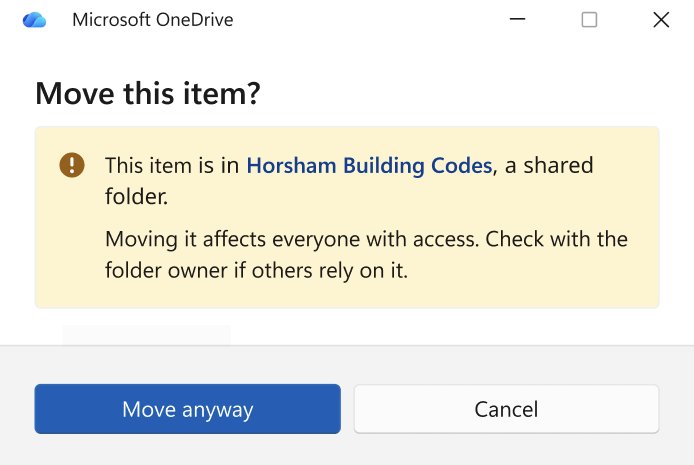
 The move experience will:
- Show over-limit character counts in a guided interface
- Display warning dialogs for over-limit shared items in OneDrive
- Display warning dialogs for over-limit items in shortcuts
Screenshot - Example warning dialog for overlimit items in shortcuts
These enhancements are designed to reduce troubleshooting time and improve the overall sync experience.
[Action required and recommendations]
No admin action is required. This update will be automatically available through the OneDrive sync client.
You may want to:
- Inform your helpdesk and support teams about the improved error messages, as this update should reduce max-path-related support tickets.
- Update internal documentation for resolving OneDrive sync issues if applicable.
Learn more
- Fix paths that are too long to sync in OneDrive | Microsoft Support
- Restrictions and limitations in OneDrive and SharePoint | Microsoft Support
[Compliance considerations]
No compliance considerations identified. This update does not change how customer data is stored, processed, or accessed.
More information
Details
In weekly changes
Platforms
- Desktop
- Windows
Services
- OneDrive
Category
- Stay informed
Microsoft tags
- Admin Action
- New Feature
- User Adoption
Related changes
- 557563 Improved max path error experience on desktop Roadmap · OneDrive · In development